Photo Library Organisation: Structure and Naming
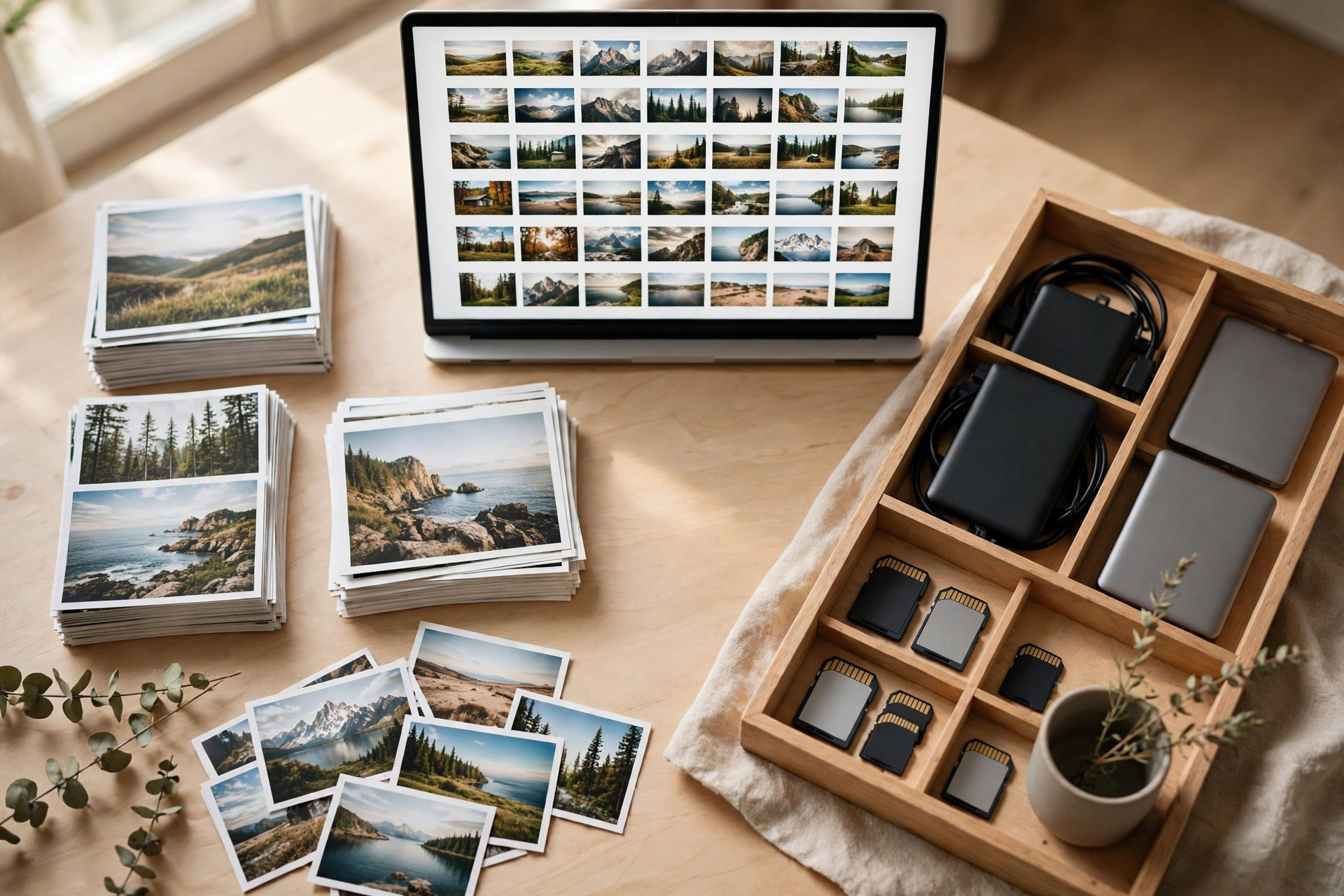
Photo library organisation comes down to three things: a flat folder structure that mirrors how you search, a fixed naming convention, and tags for everything folders cannot express. For a restaurant, that means every dish, interior and staff photo is findable in under a minute — and you always know which version is safe to publish.
Key takeaways
- Give all photos one trusted home — a single shared drive, NAS or cloud folder that everyone treats as the official library.
- Keep folders flat and broad: no more than 2–3 levels deep, organised by purpose (Brand, Menu, Campaigns, Staff, Events) rather than by date alone.
- Name every file the same way: YYYY-MM-DD_subject-version.jpg. The date sorts, the subject searches, the version protects you.
- Use tags for everything folders cannot do — a photo of a dish on the terrace belongs to several categories at once, and tags let it live in all of them.
- Back up everything with the 3-2-1 rule, and attach consent and usage-rights information to any photo that shows recognisable people.
Every restaurant accumulates photos faster than it realises. Phone shots of new dishes, the photographer's files from last spring's shoot, staff portraits for the website, terrace photos taken on a perfect evening, screenshots saved by someone who has since left. Within a year or two, the collection lives in five places: someone's phone, an old laptop, a half-synced Dropbox, an email attachment folder, and a USB stick nobody can find. This is where marketing slows down. Finding the right hero image for the new menu takes an afternoon. Nobody knows whether the terrace photo on the website is last summer's or three summers ago. Two different logos circulate on delivery platforms. This article is the fix: a complete, practical system for organising a restaurant's photo library, from folder structure and file naming to backups, rights and long-term maintenance — sized for a business with a handful of staff, not a media agency.
Why photo organisation matters for a restaurant
Photos are the hardest-working marketing assets a restaurant owns. They appear on the website, in Google Business Profile, on delivery apps, in social posts, in ads, on the booking confirmation email, and on the printed menus. A single dish photo might be published in ten places over its life. If that photo is hard to find, out of date, or the wrong version, the damage is not abstract: a Google listing showing a dish you stopped serving two years ago costs real bookings. A stale interior shot with last year's furniture confuses arriving guests. A staff photo of someone who left in 2024 on the "meet the team" page looks careless.
Disorganisation also has a quiet, compounding cost: time. The industry pattern is consistent — businesses without a system spend a surprising share of every marketing task just searching for the files. Designers and freelancers bill by the hour while you hunt through old folders. Social posts get delayed because the approved logo cannot be found, so last month's faded version goes up instead. And because nobody trusts the library, everyone keeps their own copies, which multiplies the chaos. The library stops being a resource and becomes a junk drawer.
The third cost is compliance. Photos of identifiable staff and guests are personal data under GDPR, and the EU takes it seriously. A photo of a recognisable employee published on Instagram without documented consent is a risk that no restaurant needs. Usage rights matter too: that stock photo someone downloaded "from Google" for a Facebook ad can turn into a licensing invoice months later. An organised library records consent and rights at the file level, so you can prove what you are allowed to use.
The hidden cost of photo chaos
Three costs, none of them optional: lost time (every marketing task starts with a file hunt), brand damage (outdated photos on Google, delivery apps and your site), and compliance risk (people photos under GDPR, stock licences you cannot prove). Organising the library pays for itself the first time a freelancer asks for "the logo" and you can send it in ten seconds.
Our differentiation is simple: most photo-organisation advice is written for photographers or large marketing departments. This guide is written for the restaurant owner, manager or marketer who has to build and maintain the system between services, in the Nordics, with the tools already available — Google Drive or a small NAS, plus discipline.
Start with one source of truth
Before designing folders or naming rules, do the one thing everything else depends on: pick a single place where the official photo library lives, and make everyone use it. This is the "single source of truth" principle, and every professional guide repeats it because everything fails without it. The best home is the one your team will actually use every day — for most small restaurants that is a shared Google Drive folder or a folder on a NAS, not an exotic new system.
Round up the scattered files first
The first task is an audit. Collect everything: phones, old laptops, email attachments, the designer's delivery links, the photographer's download galleries, the social media manager's personal drive. You do not need to sort yet — just gather. Create an Inbox folder inside the new home and drop everything there as it arrives. Resist the urge to organise during the round-up; sorting while gathering is how the audit stalls at 40%. The goal of this step is completeness: knowing what you have.
Cull before you sort
Once everything is in the inbox, cull ruthlessly. Delete blurry shots, accidental screenshots, duplicates, corrupted files, and the seventeenth near-identical version of the same dish. Be decisive but not reckless: keep one good original of everything you might publish, and delete only what is genuinely unusable. A lean library of 300 strong photos beats a bloated one of 3,000 where the good ones are buried. If you are keeping both originals and edited versions, the cull is also the moment to decide which edited version is the approved one — the rest go.
The best photo library is not the biggest one. It is the one where every file is findable, approved and safe to use — and everything else is gone.
Decide who owns the system
A library without an owner drifts. Name one person responsible for the system — the manager, the marketing contact, or the owner themselves — and give them authority to enforce the rules. This does not mean one person does all the uploading; it means one person can say "that goes in Archive, not in Menu" and be obeyed. Write the core rules down in a one-page document kept in the library's root folder, so a new hire or freelancer can learn the system in five minutes.
The folder structure that actually works
The folder structure should mirror how your team thinks about photos, not how a photographer thinks about shoots. Restaurants search by purpose and subject — "the pizza photos," "the terrace," "staff portraits" — not by camera or shoot date. The professional consensus for small teams is a structure that is flat, broad, and boring:
Restaurant Photos/
├── 00 Inbox/              new uploads, unsorted
├── 01 Library/            approved assets, safe to publish
│   ├── Brand/             logos, fonts, templates
│   ├── Menu/              dishes and drinks, by menu section
│   ├── Interior/          dining room, bar, terrace, details
│   ├── Staff/             portraits and team shots
│   ├── Campaigns/         seasonal campaigns and ads
│   └── Events/            openings, tastings, catering
├── 02 Working/            drafts and edits in progress
└── 03 Archive/            superseded and historical photos
Why four top-level folders
The four top-level folders solve the most common organisational failures. Inbox gives new uploads an obvious first home, so unsorted photos stop landing on desktops and in random folders. Library holds only finished, approved assets — when a freelancer, delivery platform or new staff member needs a photo, the Library is where they look, and everything there is safe to publish. Working is for drafts and edits, so half-finished material never leaks into the Library by accident. Archive keeps superseded photos out of sight but not destroyed — last year's summer menu photos, former staff portraits, the old interior.
Stay shallow: 2–3 levels is the limit
The single most important structural rule: never nest deeper than three levels. If you need six nested folders to make sense of a photo, you are forcing folders to do metadata's job — and nobody will file or find anything correctly. A dish photo lives at Library/Menu/mains/. A staff portrait at Library/Staff/portraits/. If you want to express "summer campaign, terrace, salmon dish," that is what tags are for (see below), not a six-deep folder path.
The Archive is not a junk drawer
Give the Archive its own simple structure — usually by year — and treat it as read-only history. Move a photo to the Archive the moment it stops being current: a dish leaves the menu, a campaign ends, the terrace gets renovated, a team member leaves. Archiving is a habit, not an annual event. When the Archive is well kept, it becomes a valuable asset: launch an anniversary post, a "ten years ago" social series, or a pitch to a journalist with zero new shooting.
File naming conventions that survive growth
Default camera filenames — IMG_4821.jpg, DSC00412.jpg — say nothing about what the photo shows and sort randomly. They are fine until the day you need to find something, and then they are a wall. A naming convention turns every filename into a tiny description. The formula that works for almost every small business:
The naming formula
YYYY-MM-DD_keyword-description_size-or-version.jpg
Examples: 2026-05-14_mushroom-risotto_hero-v2.jpg, 2025-12-01_terrace-summer_web.jpg, 2026-10-02_anna-k_headshot.jpg. Use lowercase, hyphens between words, underscores between sections. The date first means files sort chronologically automatically; the keyword means they are searchable by subject; the suffix tells you the version.
The rules behind the formula
Keep these seven rules and the system holds together:
- Date first, always in YYYY-MM-DD format. This is the only format that sorts correctly. Use the shoot date or the date the photo became current, not the download date.
- Keywords in the file's language of use. For an English-facing library,
terrace-eveningbeats a mixed-languageterassi-ilta. Pick one language for filenames and document it. - Hyphens inside phrases, underscores between blocks.
mushroom-risottoreads as one concept;2026-05-14_mushroom-risotto_web.jpgreads as three. This is a widely used convention precisely because it is readable. - No spaces, no special characters, no åäö/æøå. Spaces and special characters break URLs, email attachments and some delivery platforms. Nordic characters are charming in captions and a liability in filenames.
- A suffix for size or version.
_web,_social,_print, or_v2. This kills the infamousfinal-final-v7.jpgspiral: each version gets a name, and the approved one is obvious. - Number sequences when you have series.
2026-05-14_dining-room_01.jpgthrough_06.jpgfor a room set. Zero-pad so they sort properly. - Apply the convention at ingest, not "later." Renaming is part of moving a photo from Inbox to Library. Five photos renamed per shoot is a two-minute habit; five hundred renamed in a panic is a lost weekend.
| Bad filename | Why it fails | Good filename |
|---|---|---|
| IMG_4821.jpg | No subject, no date, no sort order | 2026-05-14_mushroom-risotto_web.jpg |
| pizza final v2 NEW.jpg | Spaces, unclear version, meaningless "final" | 2026-04-02_margherita-pizza_hero-v2.jpg |
| terassi kuva.jpg | Mixed language, special character, spaces | 2025-07-20_terrace-summer_web.jpg |
| logo.png | Which logo? Which version? | logo_primary_rgb_2026-01.png |
A good filename answers three questions before you open the file: when was this taken, what does it show, and which version is it?
Tags and metadata: what folders cannot do
Folders have one hard limit: a photo can only live in one folder. But a photo of the salmon dish photographed on the terrace during the summer campaign belongs to three categories — Menu, Interior, Campaigns. This is where tags and metadata come in. Tagging attaches descriptive keywords to the file itself, so one photo can carry many labels: salmon, terrace, summer-campaign-2026, mains, website-hero.
How to tag without special software
You do not need a dedicated digital asset management system to start tagging. On a small library, a shared spreadsheet (the "asset register") listing filename, subject tags, shoot date, photographer, consent status and usage rights does the job. Google Drive lets you add descriptions to files; macOS and Windows let you tag files natively. The tool matters less than the discipline: a consistent, agreed vocabulary. Decide once whether it is terrace or outdoor, headshot or portrait, and write the vocabulary in your one-page rules document. Ten consistent tags beat fifty improvised ones.
IPTC metadata: the tags that travel with the file
For photos that leave your hands — sent to journalists, uploaded to stock agencies, shared with partners — embed the important information directly in the file using IPTC fields: title, description, keywords, copyright and the photographer's name. Most photo software can read and write these fields, and they survive copying, emailing and re-uploading. At minimum, set the copyright and contact fields on every photo from a professional shoot, so your ownership travels with the image.
When to step up to a real DAM
A proper digital asset management system — software built specifically to organise, search and govern media — becomes worth it when the library passes a few thousand assets, several people publish daily, or you need formal rights governance across many locations. That is typically the 10+ restaurant group or franchisor level. For an independent restaurant, the honest answer is that a well-run folder system with naming conventions and tags does the job. If you do outgrow it, look for a DAM that integrates with the storage you already use (several layer DAM features on top of Google Drive) rather than forcing a full migration.
For a broader view on how your visual brand fits together — the logos, colours and style those photos need to support — see our guide to restaurant brand identity.
Version control and exports for every channel
One of the fastest ways a library descends into chaos is uncontrolled exports. The approved hero photo gets downloaded, resized in a phone app, re-uploaded with a new name, and within a year there are six near-identical versions of the same image and nobody knows which one is current. The rule is simple: one master, many exports. Keep one high-resolution master of every approved photo in the Library, and treat every web, social and print version as a disposable export generated from that master.
The export workflow
Store the master at full resolution, in a lossless or high-quality format, with edits baked in. When a channel needs a version — the website hero at 1920 pixels wide, an Instagram crop at 1080 square, a print flyer at 300 dpi — generate it from the master, name it with the channel suffix (_web, _social, _print), and if it needs to be kept, store it in the same folder as the master. If the master changes (a re-edit, a new crop), regenerate the exports from the new master rather than re-editing old exports. Never edit an export and save it back as if it were the original — that is how quality degrades generation by generation.
What each channel actually needs
| Channel | Size | Format | Colour |
|---|---|---|---|
| Website hero | 1920 × 1280 px | JPEG, quality ~80 | sRGB |
| Website menu / gallery | 1200 px on the long edge | JPEG or WebP, quality ~75 | sRGB |
| Instagram / TikTok | 1080 × 1350 px (4:5) | JPEG | sRGB |
| Google Business Profile | 720 px minimum, 1920 preferred | JPEG | sRGB |
| Print flyer / menu | 300 dpi at final size | TIFF or high-quality PDF | CMYK (ask the printer) |
Two details matter more than the numbers. First, always export for the web in sRGB — photos edited in other colour spaces look washed out or oversaturated in browsers. Second, strip or keep metadata deliberately: keep copyright IPTC fields, but there is no need to publish the exact GPS coordinates of your kitchen. The right food photography fundamentals only pay off if the exported files are correct when they reach each channel.
Keep one high-resolution master and generate every channel version from it. Never edit an export and save it back as the original.
Backups: the 3-2-1 rule, applied to restaurants
An organised library that exists in only one place is one spilled coffee, one ransomware email or one failed drive away from not existing at all. The standard to follow is the 3-2-1 rule: three copies of every important file, on two different media, with one copy off-site.
What 3-2-1 looks like in practice
For a restaurant, a workable setup is: (1) the working library on the shared drive or NAS — the copy everyone uses daily; (2) an automatic cloud backup of that drive (Google Drive's own backup, Backblaze, or the NAS manufacturer's cloud sync); (3) a periodic full copy on an external drive that lives somewhere else — the owner's home, not the restaurant. The external drive gets refreshed quarterly and is your insurance against the building burning down or the cloud account being locked. None of this needs to be expensive: a 2 TB external drive costs around €60–80, and cloud backup for a photo library runs a few euros a month.
Automate it, then test it
Backups fail for two boring reasons: they were manual, or they were never tested. Automate the cloud backup so it runs without anyone remembering. For the quarterly external drive, put a recurring calendar reminder in place and treat it like a health inspection — non-negotiable. And at least once a year, restore a random handful of files from the backup and check they open. A backup you have never restored from is a hope, not a plan. Finally, keep backup drives encrypted and labelled; an unencrypted drive full of staff photos left in a drawer is a GDPR incident waiting to happen.
Backup checklist
- Working copy on the shared drive or NAS — the daily-use library.
- Automatic cloud backup of the whole library — runs without human input.
- Quarterly copy on an external drive stored off-site (owner's home, not the restaurant).
- Annual restore test: pick random files from the backup and verify they open.
- All backup media encrypted, all drives labelled with date and content.
Rights, consent and GDPR for restaurant photos
This is the section most restaurant guides skip, and it is the one that can cost real money. Two distinct legal questions attach to almost every photo you publish: who took it (copyright and usage rights) and who is in it (consent and GDPR).
Copyright: who took the photo
The photographer owns the copyright by default, even if you paid for the shoot — what you bought is a licence, not the photo. Read every photographer's contract and record the licence terms in your asset register: where may the photos be used (website? ads? print?), for how long, and in what territory. A common Nordic freelance package covers web and social use for a year or two; a campaign or a billboard is often extra. When you hire a photographer, our guide to hiring a food photographer includes the questions to ask about rights before the shoot. And the golden rule of stock: never use a photo found "on Google" in marketing. If you cannot point to the licence, you do not have the right to use it — licensing invoices from image agencies arrive months after publication, with interest.
GDPR: who is in the photo
Photos of identifiable people are personal data under GDPR. For staff photos, get written consent before the shoot — a simple signed form stating where the photos will be used (website, social media, Google Business Profile) is enough, and keep the signed forms with the photos. Staff can withdraw consent, so the asset register should link each staff photo to its consent record; when someone leaves, archive their photos and stop using them in new material. For guests, the practical rule is: photograph food, interiors and atmosphere, not recognisable faces, unless you have explicit permission. If a great candid shot includes a guest, ask — a compliment about the evening plus a consent form takes a minute.
Model releases and minors
If you hire models or photograph children (a family restaurant's kids' menu shoot, for instance), written releases are non-negotiable, and for minors a parent or guardian must sign. Store releases permanently — a photo's usable life can easily exceed the employment or the campaign it was shot for, and the release is your proof. This paperwork feels bureaucratic until the day a former employee asks where their photo is still being used. With an organised register, the answer takes thirty seconds.
Keeping it maintained: the quarterly hour
Organisation systems die from neglect, not from bad design. The maintenance that keeps this one alive is deliberately small: one hour, four times a year. Put it in the calendar like a stocktake.
The quarterly routine
- Empty the Inbox. Every photo in Inbox gets renamed, tagged and filed into Library, Working or Archive — or deleted. An empty Inbox is the goal.
- Archive what expired. Dishes that left the menu, campaigns that ended, staff who moved on. Move them to Archive with the date.
- Spot-check the Library. Open a dozen random files. Do they open? Are the names right? Is the hero image on the website still in the Library, or has someone been editing a downloaded copy?
- Review the rules page. Does the one-page system document still match reality? Update the tag vocabulary if new categories crept in.
The annual review
Once a year, go deeper: refresh the backup drive, verify the cloud backup's restore process, check that photographer licences and staff consents are still current, and delete the Archive's genuinely worthless material (corrupted files, near-duplicates of near-duplicates). The annual review is also the moment to plan shoots proactively: which folders are thinnest? Which campaign is coming next spring? A library maintained this way stops being a chore and becomes what it should be — the quiet engine of your marketing. Your Google Business photos and your phone-shot content both get better when the system behind them is sound.
If the photos are organised but the website still does not do them justice — slow galleries, broken images, a design from 2019 — that is a separate problem, and it is one PowerfulWebsite solves directly: the build is free, and you only pay from €59/mo with everything included.
Frequently asked questions
How should a small business organise its photos?
Start with one trusted home for all photos — a single shared drive or cloud folder. Organise with a flat folder structure (no more than 2–3 levels deep), a fixed file naming convention, and metadata tags for everything folders cannot express. Separate raw uploads, approved final assets and archived material, and back everything up in at least two independent places.
What is the best file naming convention for business photos?
A good naming convention uses fixed elements in a fixed order: date first in YYYY-MM-DD format, then a short keyword describing the subject, then a version or size suffix. For example, 2025-11-14_mushroom-risotto_hero-v2.jpg. The date makes files sort chronologically, the keyword makes them searchable, and the suffix prevents the final_final_v7 problem.
Should a restaurant use a DAM system or just folders?
For most independent restaurants, cafes and small restaurant groups, a well-run folder system with naming conventions and tags is enough. A dedicated digital asset management (DAM) system pays off when the library passes several thousand assets, multiple people publish daily, or you need formal usage-rights governance — typically at 10+ locations or a franchisor level.
How do I back up my restaurant's photo library?
Follow the 3-2-1 rule: three copies of every important file, on two different media, with one copy off-site. For a restaurant that typically means the originals on a shared drive or NAS, an automatic cloud backup, and a periodic archive on an external drive stored away from the premises. Test restores occasionally — a backup you have never tested is a hope, not a plan.
How long should a restaurant keep old photos?
Keep finished, brand-relevant photos indefinitely in a read-only archive — a great dish or interior shot from five years ago can still be useful. Move superseded photos (old menu items, former staff, outdated interiors) to the archive rather than deleting them, and review the archive once a year. Only delete blurry, duplicate or corrupted files that clearly have no value.
Want a website that shows your photos at their best?
PowerfulWebsite builds your restaurant's website free — you only pay from €59/mo. Everything included: domain, hosting, maintenance and updates, with fast galleries that do your photography justice.
See the packages